23.0 - Last modified on 02-17-2026 Revised by Mike Caban
22.0 - Last modified on 02-17-2026 Revised by Mike Caban
21.0 - Last modified on 01-12-2026 Revised by Adam Chang
20.0 - Last modified on 07-14-2025 Revised by Paty Ruiz Gonzalez
19.0 - Last modified on 07-14-2025 Revised by Paty Ruiz Gonzalez
18.0 - Last modified on 07-14-2025 Revised by Paty Ruiz Gonzalez
17.0 - Last modified on 07-14-2025 Revised by Paty Ruiz Gonzalez
16.0 - Last modified on 11-01-2024 Revised by Jon Haynes
15.0 - Last modified on 04-10-2024 Revised by Jon Haynes
14.0 - Last modified on 04-04-2022 Revised by Sylvia Bass
13.0 - Last modified on 12-15-2021 Revised by Mike Caban
12.0 - Last modified on 10-27-2021 Revised by Sylvia Bass
11.0 - Last modified on 10-06-2021 Revised by Sylvia Bass
10.0 - Last modified on 08-31-2021 Revised by Mike Caban
9.0 - Last modified on 08-31-2021 Revised by Mike Caban
8.0 - Last modified on 08-31-2021 Revised by Mike Caban
7.0 - Last modified on 08-31-2021 Revised by Mike Caban
6.0 - Last modified on 08-31-2021 Revised by Mike Caban
5.0 - Last modified on 08-31-2021 Revised by Mike Caban
4.0 - Last modified on 08-31-2021 Revised by Mike Caban
3.0 - Last modified on 08-31-2021 Revised by Mike Caban
2.0 - Last modified on 08-31-2021 Revised by Mike Caban
1.0 - Created on 08-31-2021 Authored by Mike Caban
[ Back to Duo ]
If you run into any problems after following these instructions, email us at oit@uci.edu or give us a call at 949-824-2222. For your security, we'll need to speak with you to verify your identity before we can assist.
Before you start these instructions, make sure the DUO Mobile app is installed on your phone (search "Duo Mobile" in the Apple or Android app store).
Step 1: Register Duo on a new phone
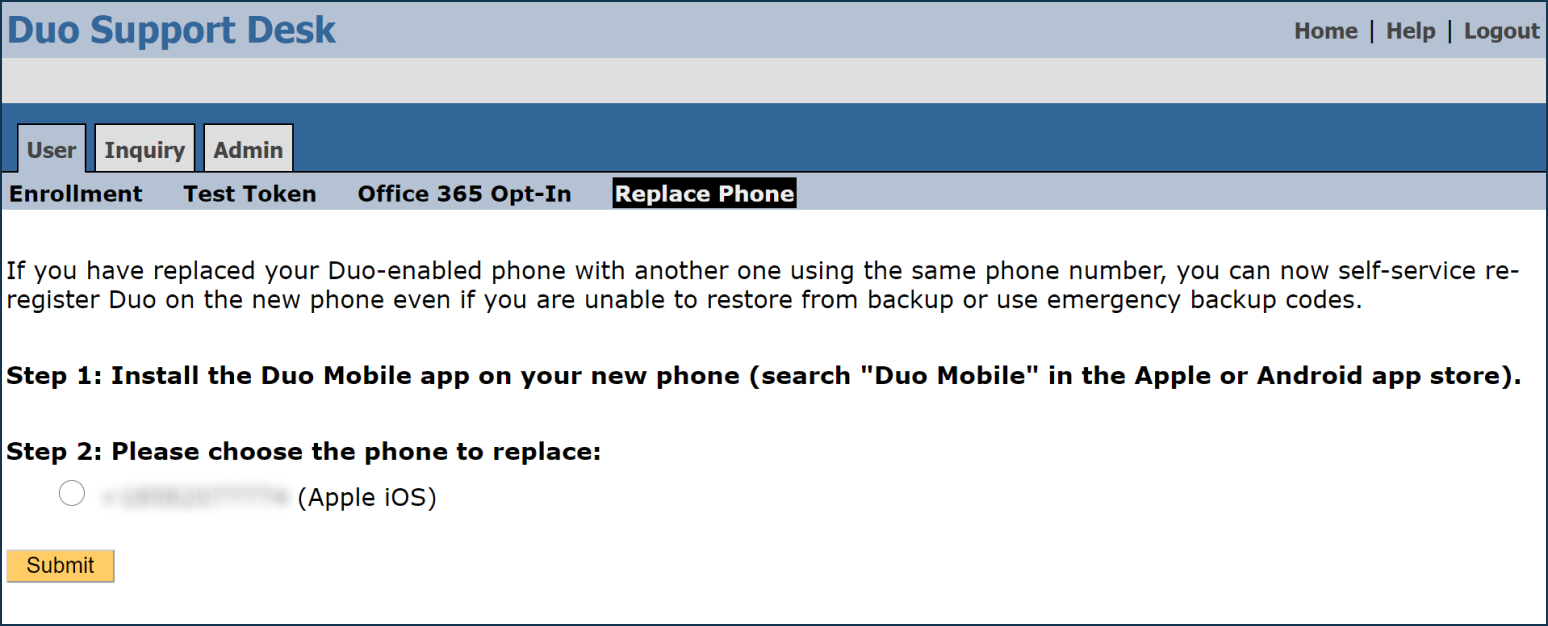
Click on the blue button below to open the Replace Phone page in the Duo Support Desk web application. If prompted, sign in with your UCInetID and password. You may also use this URL:
https://duosupportdesk.service.uci.edu/replacePhone.htm

Select the radio button next to your telephone number and then select Submit. The system will send you a text message.
Step 2: Activate Duo on your phone
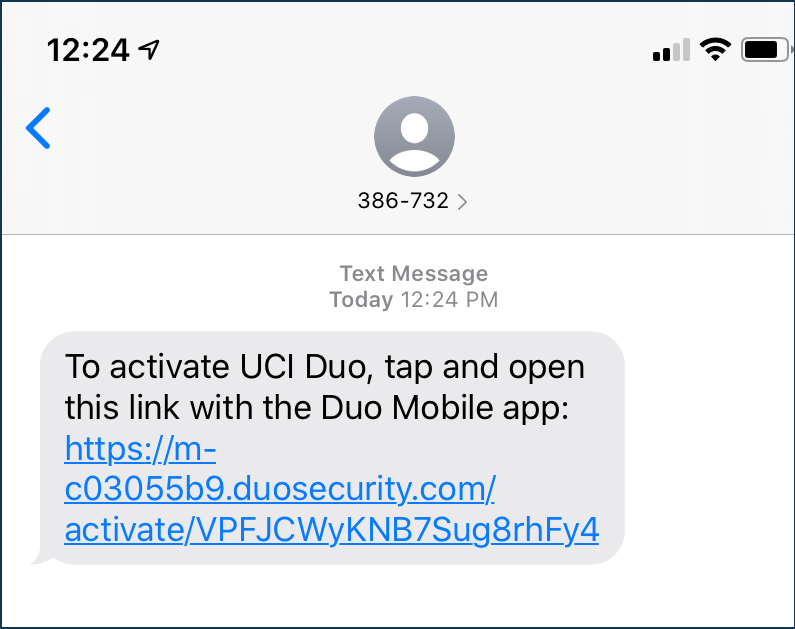
Check your mobile phone for a text message that looks like this, and tap on the link.
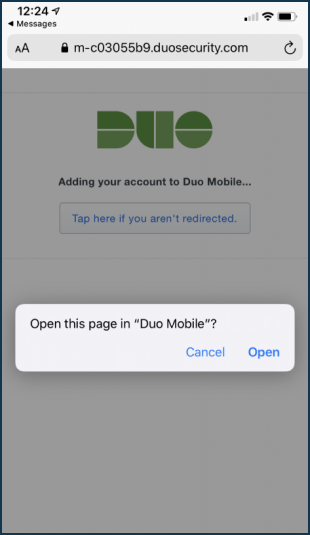
The link should open the Duo Mobile app on your phone (depending on your device, it might first open your web browser and ask if you want to open the Duo Mobile app). If it does, select Open. Please note that the link will expire in 30 minutes.
You're Done!
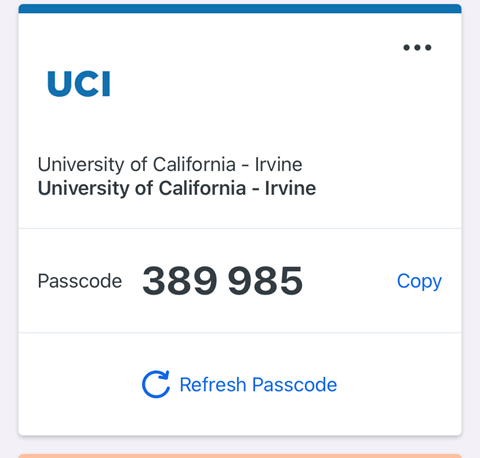
Your duo app should now be open, and display a passcode (as seen below). This means that you're finished, and will be able to use duo pushes and passcodes with your phone.